01
Web apps
Connect a web app running on your computer and access it remotely or share it with authorized people.
WEB APP ↗
Connect web apps, AI tools and MCP servers on your computer. Access them remotely through your address and choose who can use each app.

Xiaolong's Agent
Computer onlineResearch, weekly reports and data analysis
Apps on this computer
Research assistant
Web app
Report builder
MCP server
Home NAS
Files
Remote desktop
Remote desktop
Reachable anywhere, shared app by app
Public address · private by default
02 / PUBLISH
Bring local services within reach, with an access method suited to each app.
Connect a web app running on your computer and access it remotely or share it with authorized people.
Connect a local MCP server and use it remotely through an MCP client with the appropriate authorization.
Connect supported local services. Remote desktop and SSH require compatible clients and have additional access restrictions.
03 / USE CASES
From using your own tools on the go to working with colleagues and clients, see what the gateway makes possible.
Explore what others have shared and try an app for yourself.
 01
AI TOOLS · REMOTE ACCESS
Keep your home computer running and continue using your AI tools while away.
 02
DESIGN & DEVELOPMENT · PREVIEW
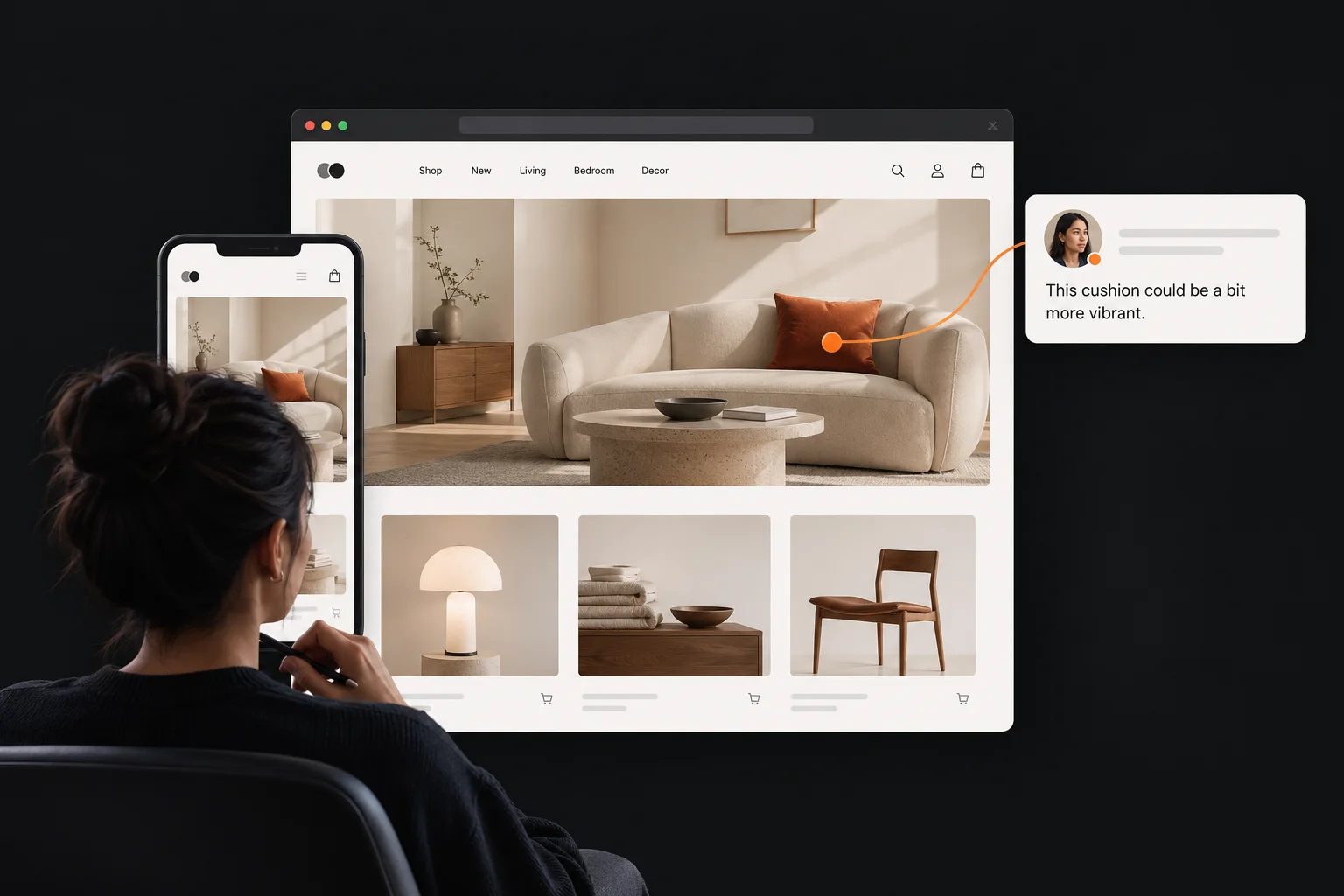
Invite a client to try the website running on your computer and give feedback.
 03
MCP · AUTHORIZED ACCESS
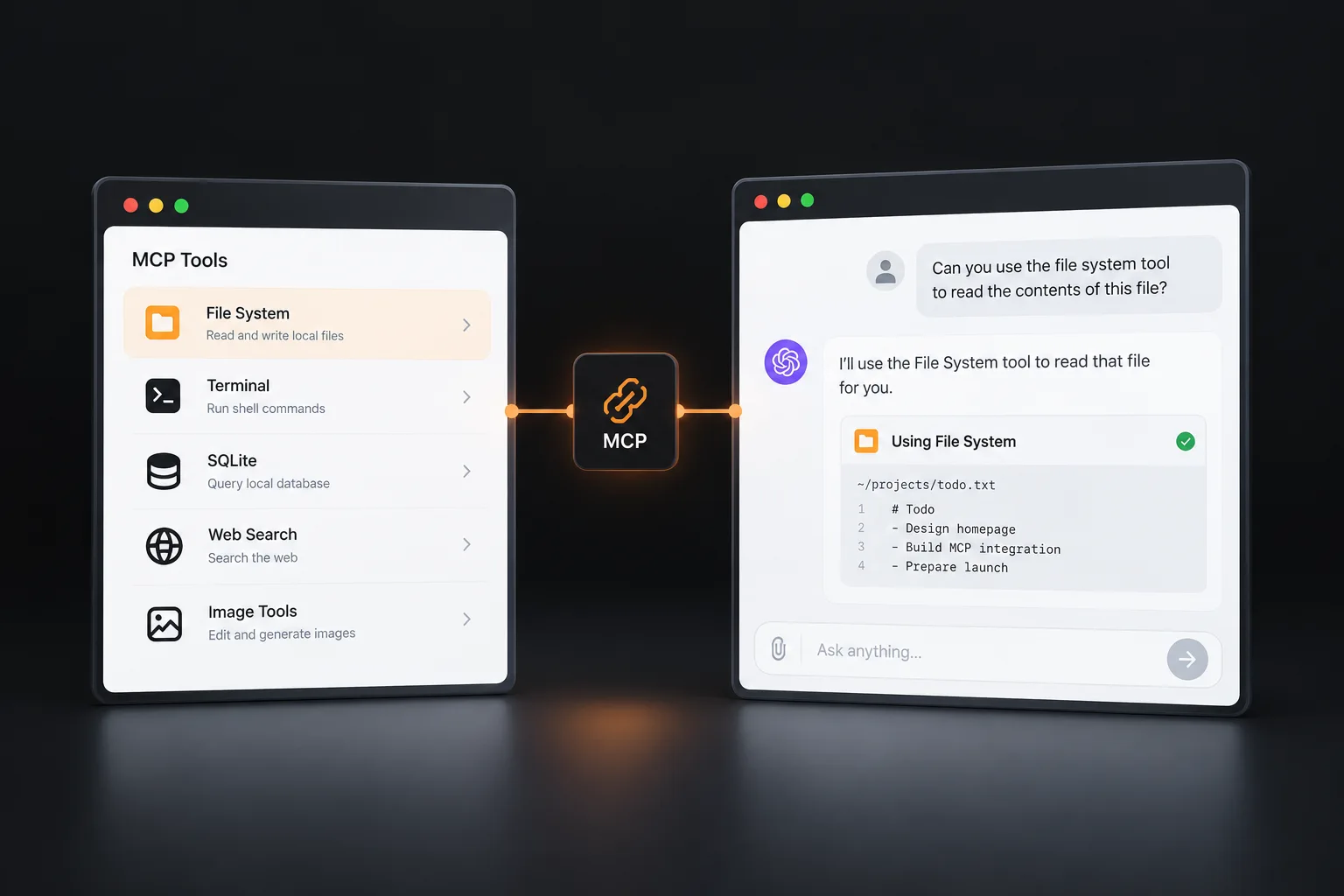
Publish a configured MCP server for authorized calls from compatible clients.
 04
DATA · REMOTE ACCESS
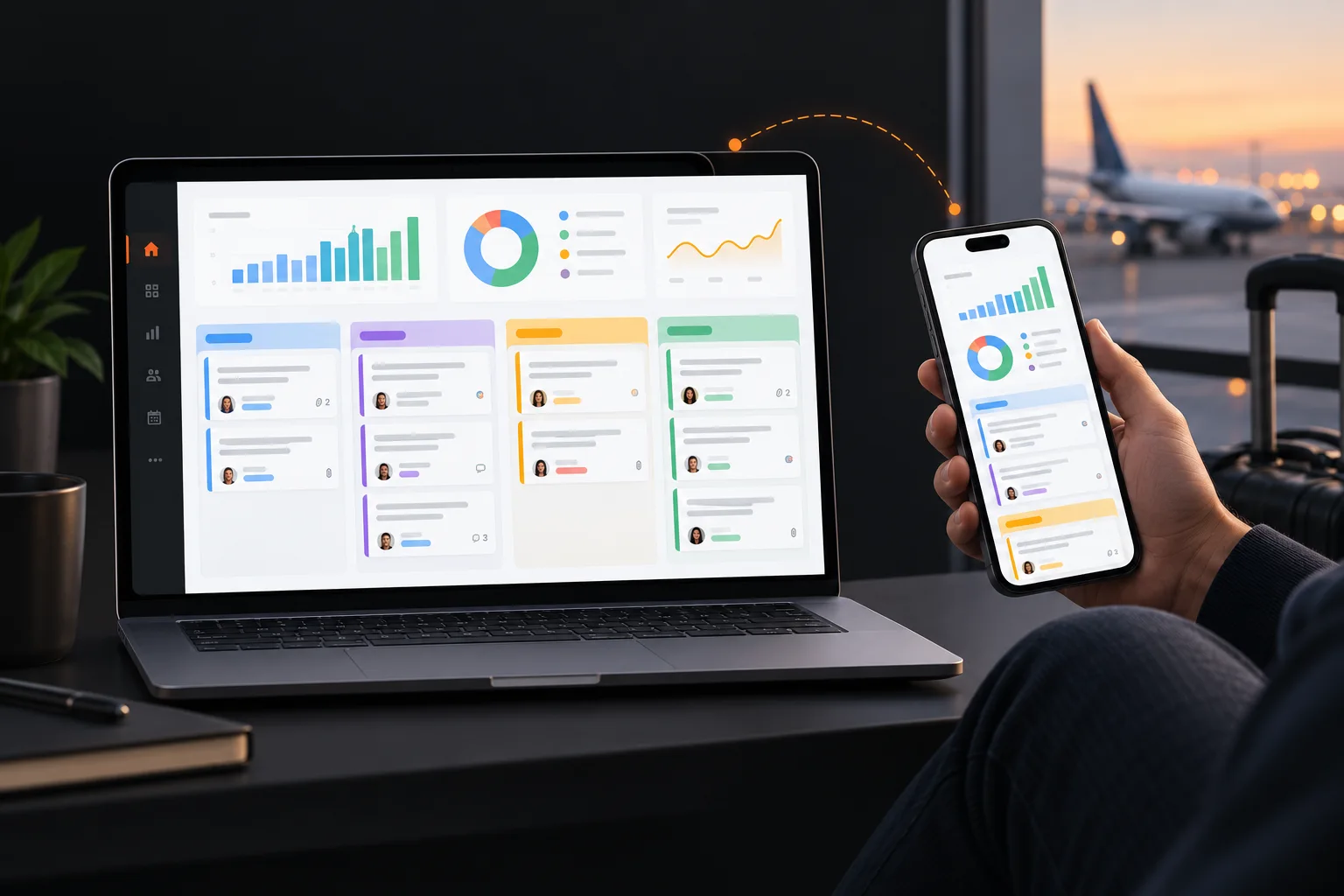
Connect a local dashboard and check your data while travelling, subject to access permissions.
Images illustrate use cases. Prepare and run apps locally; keep the computer, client and app online for remote use.
04 / GET STARTED
Three steps to give your app a controlled point of access.
Download the desktop app ↗Choose a unique name for your access address.
Install the UUMit desktop app, connect your account and confirm your computer.
Choose an app or service in the desktop app and set who can use it.
05 / ACCESS & CONTROL
From personal access to invited users, control each app individually.
Newly published apps are private to you by default. Depending on the app and edition, you can invite specific people or make an app available to everyone. You control access changes and revocation.
Sensitive connections such as remote desktop and SSH have additional restrictions; check the settings for your app and edition.
After publishing a local MCP server, connect from an MCP-compatible client using the service address and the appropriate authorization. An MCP address is not an ordinary web page.
06 / READY TO START
Install the desktop app, connect your computer and choose an app to publish.
Contact Us
Join & Get 888 UT Bonus
Scan to claim exclusive rewards